 by
by 
Occasionally, Microsoft needs to release patches out of the normal window of the patch cycle. For example, in January 2022, Microsoft’s monthly patches inadvertently disrupted the L2TP Microsoft VPN rendering customers around the unable to use that as a remote access solution. The following week saw an Out-Of-Band (OOB) update to resolve the issues with that patch, allowing the VPN to work again. Follow these steps to deploy OOB Windows patches using Microsoft Endpoint Manager (Intune).
Now if you are using WSUS or SCCM to deploy patches, then this article really isn’t for you. You already have the ability to deploy these patches manually whenever, so this will nothing new for you. However, if you leverage Microsoft Intune and use Windows Update for Business (WUfB), then this will be of interest to you. With this process, we will deploy these Windows 10 updates as a Win32 App from Intune, to our test group and then to the main group.
DISCLAIMER
Please understand that the content herein is for informational purposes only. This existence and contents shall not create an obligation, liability or suggest a consultancy relationship. In further, such shall be considered as is without any express or implied warranties including, but not limited to express and implied warranties of merchantability, fitness for a particular purpose and non-infringement. There is no commitment about the content within the services that the specific functions of the services or its reliability, applicability or ability to meet your needs, whether unique or standard. Please be sure to test this process fully before deploying in ANY production capacity, and ensure you understand that you are doing so at your own risk.
Table of Contents
Prepare the Updates
Build the Package
Deploy OOB Windows Patches
Conclusion
Use this process to deploy OOB Windows patches via Microsoft Intune
- First step is to get the update. Head over to the Microsoft Update Catalog and search for the update in question.
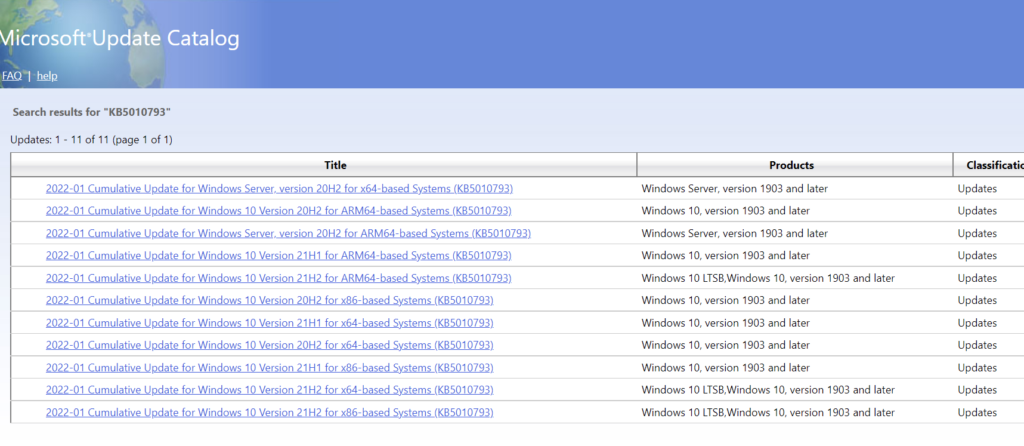
2. From here, you need to determine what Windows build you will be deploying these updates for. In my case, I have a 21H1 & 21H2 build that I will be testing these patches with. Download the appropriate versions.
3. Next we will need a few scripts to help us prepare for the deployment.
-Detection Script
-OS Version Script
Detection Script
Used as the detection method of whether or not it is installed
$patch = Get-HotFix | Where-Object HotFixID -eq "KB5010793"

try {
    if ($null -ne $patch) {
        Write-Output "Installed"
        exit 0
    }else {
        Write-Output "Not Installed"
        exit 1
    }
}
catch {
    Write-Host $_.ScriptStackTrace
    Write-Host $_.Exception
}
OS Version Script
Used on the requirements page to identify the OS build version
$build = (Get-WmiObject win32_operatingsystem).buildnumber

try {
    if ($build -eq "19043") {
        Write-Host $build
    }else{
        Write-Host "Not Windows 10 21H1"
    }
}
catch {
    Write-Host $_.ScriptStackTrace
    Write-Host $_.Exception
    Exit 2000
}
4. Next we need to package the update as a Win32 Intune app. If you don’t know how to do that, here is Microsoft’s Official Documentation. Use this to package the .msu update file.

Build the Package
5. Go into the MEM (Intune) Console and create a new Windows Application. Choose the Windows App (Win32) type.
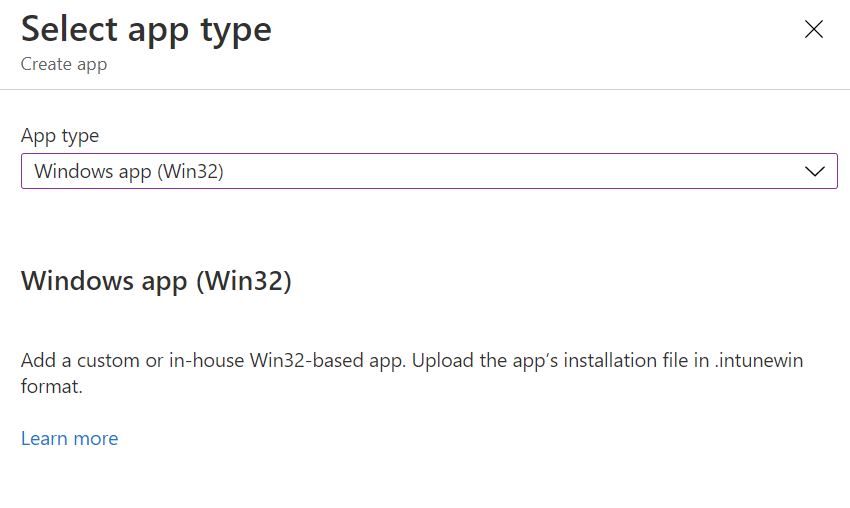
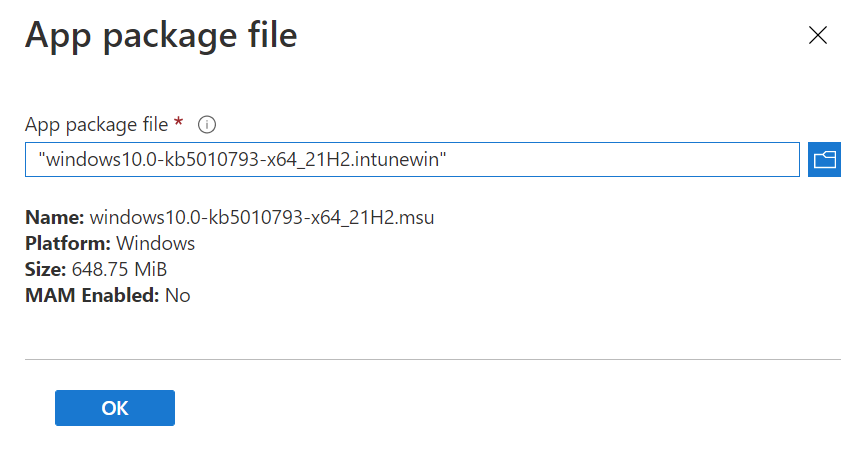
6. Select your .intunewin file for upload, and hit OK
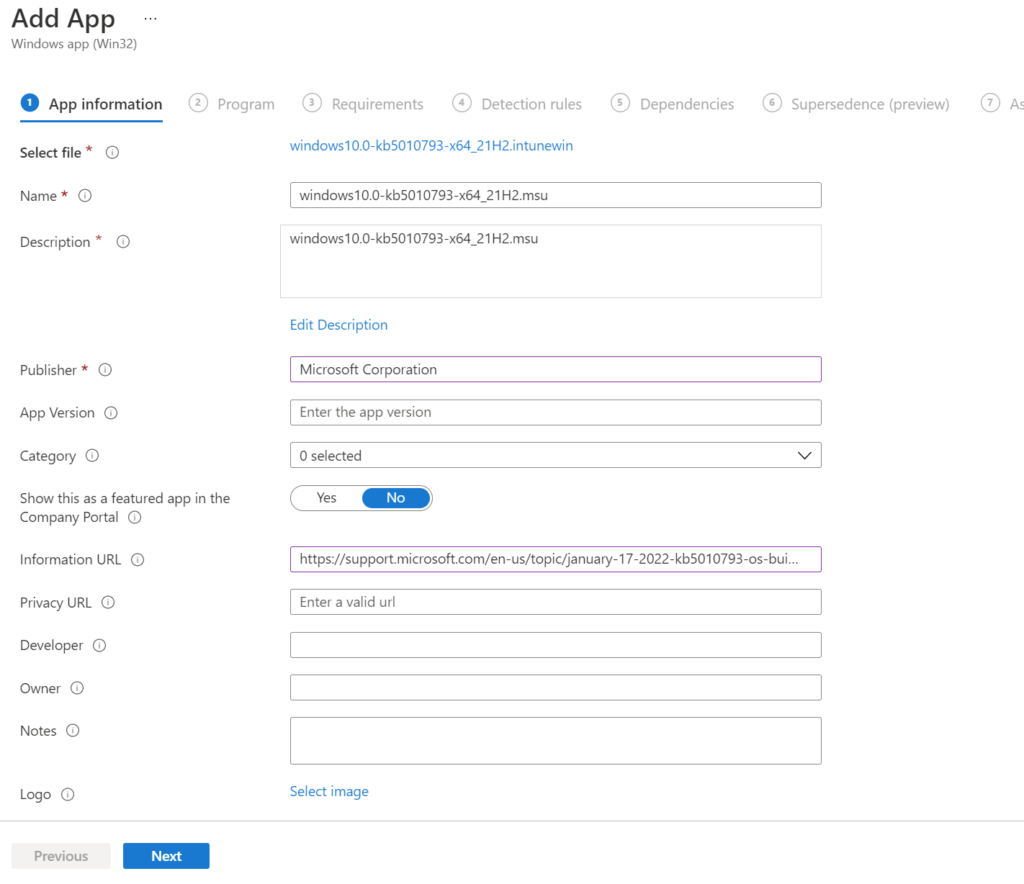
7. Fill in the required details on this screen, in most cases users won’t see these updates, so there isn’t much need to make it look pretty, but usage may vary. Hit Next when you are finished
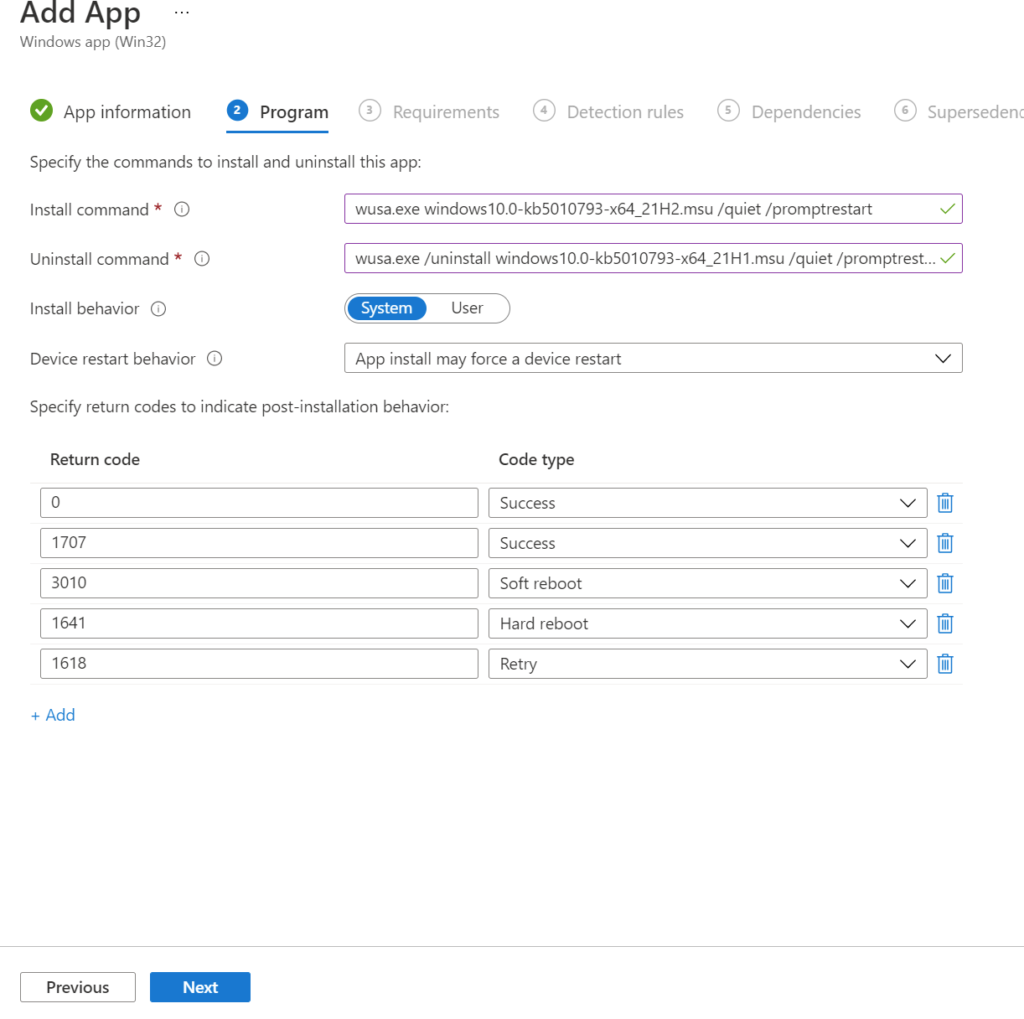
8. On the next page you need to specify the Installation and Uninstallation commands. You will want to use the WUSA.exe process to get these installed.
–Install Command – wusa.exe windows10.0-kb5010793-x64_21H2.msu /quiet /promptrestart
–Uninstall Command – wusa.exe /uninstall windows10.0-kb5010793-x64_21H1.msu /quiet /promptrestart
I prefer to use the /promptrestart so I get notified when the PC is ready to reboot for updates. Otherwise, /norestart will block notifications for a reboot. Click next when you are finished with this page.
9. Here on the requirements screen, you will need the OS Version Script from above. NOTE – you need to make sure you have the correct build number for your update. This list below should help:
21H2 = 19044
21H1 = 19043
20H2 = 19042
20H1 = 19041
1909 = 18363
1903 = 18362
You want to ensure that the script is out putting the correct build for the detection script to read it correctly. Add a requirement Rule and upload your script. If you used the exact same script as in this post, then it should look like this.
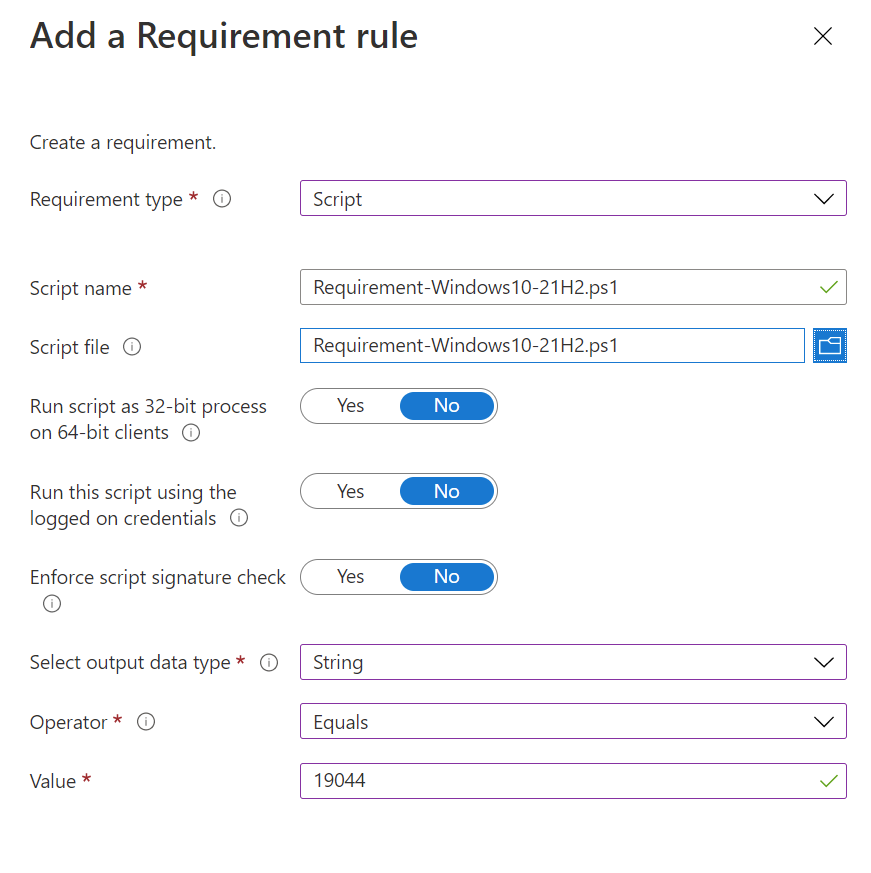
Click OK and Hit Next to Continue.
10. On the next page, you have to provide the detection method used by Intune to detect when the update is installed. The detection script above is an example of how you can do this. If you used that detection script as-is, then your detection page should look like this.
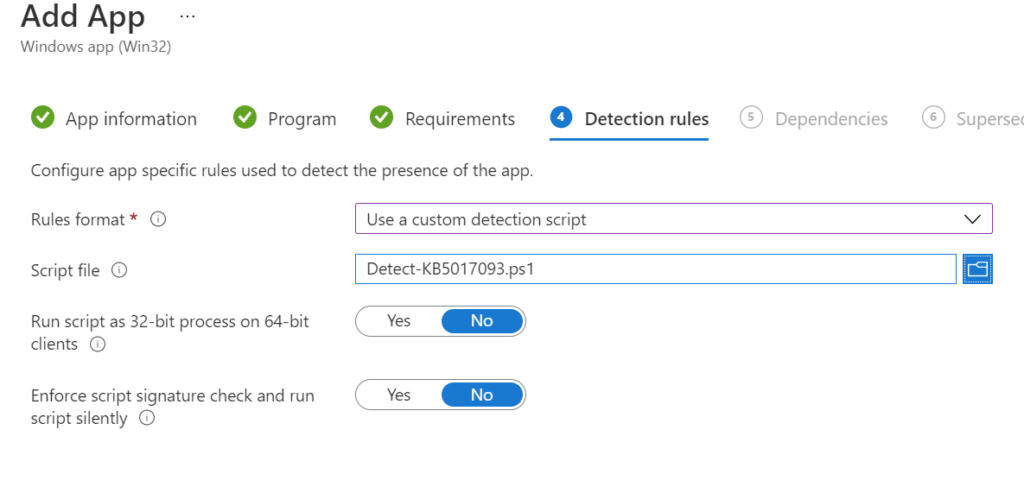
Click Next to continue.
11. There are no specific dependencies required, so fill these in based on your use case. For this test, mine is blank. Same goes for the Supersedence (preview) tab.
Deploy the Package
12. On the assignments tab, deploy to your test group for testing. I don’t recommend deploying any update to a large number of machines without testing both the update itself, and the deployment experience.
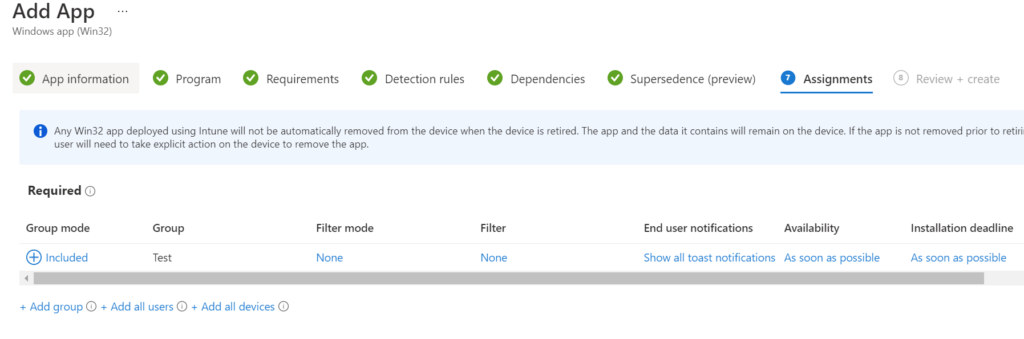
13. Finally, you want to review and create. Fix any errors that come up and allow the file to upload. Once it is done uploading, it will begin to attempt to check in with the devices in your test group. You can force a sync of the test device to attempt to speed up the installation.
14. Once Intune says it is installed, you can use your same detection script on the test device to confirm it shows as installed.
Conclusion
Repeat this process for each version of the update you need to install, updating each script for the different version of Windows 10 you want to test on. This is a simple process to ensure that you can control the rollout of out-of-band patches, while still leveraging Windows Update for Business for Intune managed clients. Hopefully someday, Microsoft releases this functionality natively in Intune, but until then, this should cover this need.
Hit me up on Twitter @SeeSmittyIT to let me know what you thought of this post. Thanks for reading!